Every proxy provider has an opinion about how a proxy should be written down, and no two of them agree. Colons here, an at-sign there, a URL from the one that read a style guide. Our browser extension’s paste box is built to swallow most of that without a fuss, and when it does choke on a line, it tells you which line and why, instead of importing nothing and leaving you to guess.
This is the reference for that box: what it reads, the rules it applies to every line, every message it can throw back, and one-line fixes for the lists it will not take as they are. Everything below comes from the extension’s own parser and its tests, not from memory. To find the box, open the extension’s manager, press Add proxies and expand Paste proxies or a dashboard code; the quick start has the screenshots.
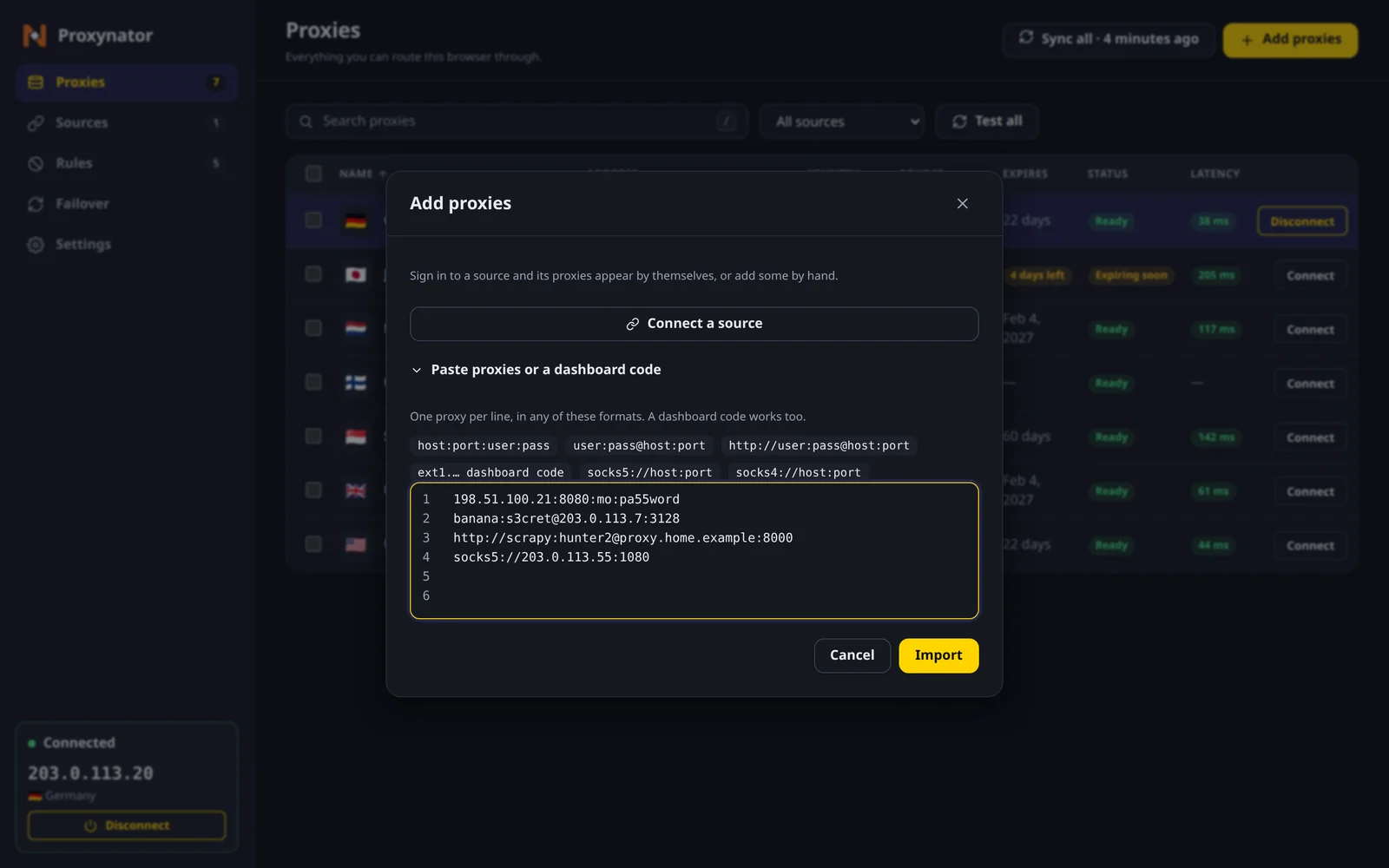
The layouts it reads
| Layout | Example | Notes |
|---|---|---|
| host:port:user:pass | gw1.proxy.example:8080:user1:pass1 | The usual “download list” shape |
| user:pass@host:port | user1:[email protected]:8080 | Login first, address second |
| http:// URL | http://user1:[email protected]:8080 | The scheme is optional for HTTP |
| socks5:// URL | socks5://gw1.proxy.example:1080 | A login is accepted in Firefox only |
| socks4:// URL | socks4://gw1.proxy.example:1080 | Never with a login |
| Dashboard code | ext1.… | From Copy for extension in your dashboard |
The dashboard code is the lazy option: every proxy’s page in your dashboard has a Copy for extension button, and the code it copies carries the address and login in one string. Nothing to reformat.
The rules it applies to every line
- One proxy per line. Blank lines and lines that start with
#are skipped, so you can keep notes in the list. Windows line endings are fine. - Passwords can be messy. In
host:port:user:pass, everything after the third colon is the password, colons included. Inuser:pass@host:portthe split happens at the last@, so a password may contain an@as well. The username is the one part that cannot hold a colon. - IPv6 goes in brackets, in every layout:
[2001:db8::1]:8080:user1:pass1. - Ports run from 1 to 65535. Anything else, including a word where the port should be, is refused.
- HTTP proxies need a login. A bare
host:portis refused for HTTP; more on that below. - One bad line does not sink the rest. The good lines are imported, and each refused one comes back with its line number and the reason.
Every message it throws back, and the fix
| Message | Usually means | Fix |
|---|---|---|
| expected host:port:user:pass, user:pass@host:port or http://user:pass@host:port | No login on an HTTP proxy, or fewer than four parts, like gw1.proxy.example:8080 | Add the username and password from your dashboard |
| port must be a number from 1 to 65535 | The fields are in another order, often user:pass:host:port, so a password landed where the port goes | Reorder the list (below) |
| missing username / missing password | An empty field, like host:8080::pass1 | Fill in the blank |
| missing port | user:pass@host with no :port at the end | Add the port |
| invalid host | Nothing before the first colon, or spaces or slashes in the host | Remove the path or spaces |
| only http://, socks5:// and socks4:// proxies are supported | An https:// or other scheme | Use the provider’s HTTP or SOCKS5 endpoint |
| IPv6 addresses must be in [brackets] | A raw IPv6 address with a port glued on | Write it as [2001:db8::1]:8080 |
| unclosed [ in IPv6 address / brackets are only for IPv6 addresses | A typo in the brackets, or brackets round a hostname | Close the bracket, or drop it |
| Chrome cannot send a username and password to a SOCKS5 proxy | A socks5:// line with a login, pasted in Chrome | Use the HTTP endpoint, or Firefox |
| SOCKS4 has no password; remove the login | A socks4:// line with a login | SOCKS4 cannot carry one; use SOCKS5 or HTTP |
The Chrome one is not the extension being difficult. Chrome has nowhere to put a SOCKS5 password, which is why the Chrome and Firefox guide says the same about the browser on its own. In a browser, HTTP loses you nothing; the SOCKS5 vs HTTP guide explains why.
Fixing a whole list in one line
The commonest refusal is a list in the wrong order. Some providers hand out user:pass:host:port; the parser reads the first field as the host, finds a password where the port should be, and says so. Reorder it before you paste. These run as they are in any shell with awk, which is every Mac and Linux box and Git Bash on Windows:
# user:pass:host:port  ->  host:port:user:pass
awk -F: '{print $3":"$4":"$1":"$2}' list.txt > fixed.txt

# CSV with host,port,user,pass  ->  host:port:user:pass
awk -F, '{print $1":"$2":"$3":"$4}' list.csv > fixed.txt

# host port user pass, separated by spaces
awk '{print $1":"$2":"$3":"$4}' list.txt > fixed.txt
One catch: these split on every colon or comma, so a password that contains one gets cut up. Sometimes the result is refused, and sometimes it imports with half a password. Either way, run Test all after the paste: a mangled password shows up as Login refused.
A list with no logins at all
Proxies authorised by your IP address come as bare host:port, and the extension refuses those for HTTP, both in the paste box and in the edit form. It wants a username and password because it answers the proxy’s login for you, which is the whole reason no password box pops up.
If your proxies are with us, use the login instead: every line we sell takes a username and password as well as an IP allowlist, and with a login the proxy keeps working when your home IP changes. A SOCKS5 endpoint without a login is the other way in, with socks5://host:port.
ProxyDesk, the desktop app, is less strict here: its import takes a bare host:port and wants both halves of a login or neither. The ProxyDesk quick start covers its import preview.
After the paste
Imported is not the same as working. Run Test all on the Proxies page before you connect: a wrong password shows up there as Login refused, a dead address as Unreachable, and a SOCKS port pasted as HTTP as Wrong scheme or TLS. Better to find out there than halfway through a login form. Stuck on a format nobody has seen before? Paste a line with the password swapped out into Discord and someone will recognise it.
Top-ups start at $5.
One shared datacenter IP for 30 days is $1.25. A single gigabyte of residential is $2.40. The balance never expires.