Every scraper you write starts the same way: paste a proxy URL in, paste another one in when that one dies, write a little rotation loop, forget to handle the case where all of them are down. ProxyDesk takes that whole chore off the script. It runs on your machine, opens one SOCKS5 address and one HTTP address on 127.0.0.1, and deals with the list behind them. Your code only ever knows one address.
This guide gets it running, points curl, Python and Playwright at it, and then breaks a proxy on purpose so you know what ProxyDesk does when one dies. Spoiler: it never quietly falls back to your own connection.
Step 1: download it
The builds are in your dashboard: open the desktop app page, or Apps & extensions in the left rail, and download the one for your system. Two warnings you will meet, both expected:
Windows warns on first run, because the build is unsigned.
macOS will not open it at first, because the build is not notarized yet. You approve it once, and only the first time:
- Open ProxyDesk. macOS says it cannot verify the app and does not open it. Close that dialog.
- Open System Settings > Privacy & Security, scroll to the Security section, find the message about ProxyDesk being blocked and click Open Anyway.
- Confirm with your password or Touch ID, then open ProxyDesk again and choose Open.
Step 2: give it proxies
Sign in. On the Account page, press Sign in to ProxyMonkey. Your browser opens; sign in there and come back. Where your system lets the browser hand the session straight back to the app, ProxyDesk picks it up by itself. That hand-back does not work everywhere yet, so the sign-in page also shows a code: press Have a code? in ProxyDesk and paste it.
Signed in, go to Proxies, open the From my account tab, select a proxy and press Connect. That adds it to ProxyDesk and starts the local addresses in one go.
Or paste your own. Proxies → Import takes one proxy per line as host:port, host:port:user:pass, user:pass@host:port or scheme://user:pass@host:port, and ignores lines starting with #. Before anything is saved it shows how it read each line: ready, a duplicate it will skip, or a line that needs a fix, with an example of the fix. The button then says exactly what happens next, such as Add 2 and test: the good lines go in and get batch-tested straight away.
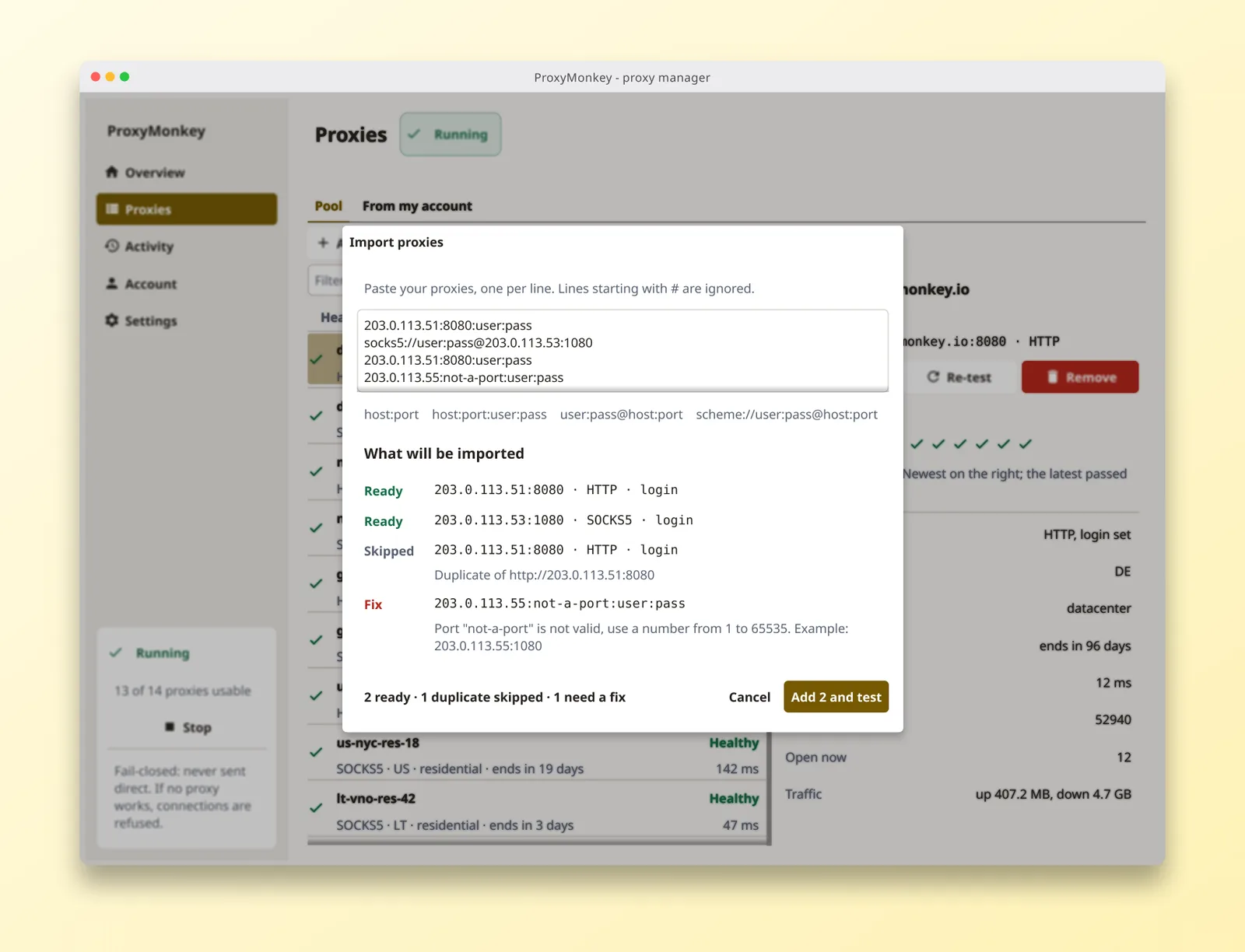
If the batch test finds a problem, the result has a Copy report for support button. Paste that into Discord rather than a screenshot; it says which proxies failed and why.
Step 3: press Start
Press Start. ProxyDesk opens SOCKS5 on 127.0.0.1:11080 and HTTP on 127.0.0.1:18080. Those are the defaults; change either port in Settings. Nothing else on the machine changes. Only an app you point at one of those addresses goes through ProxyDesk, which the Overview page says in as many words.
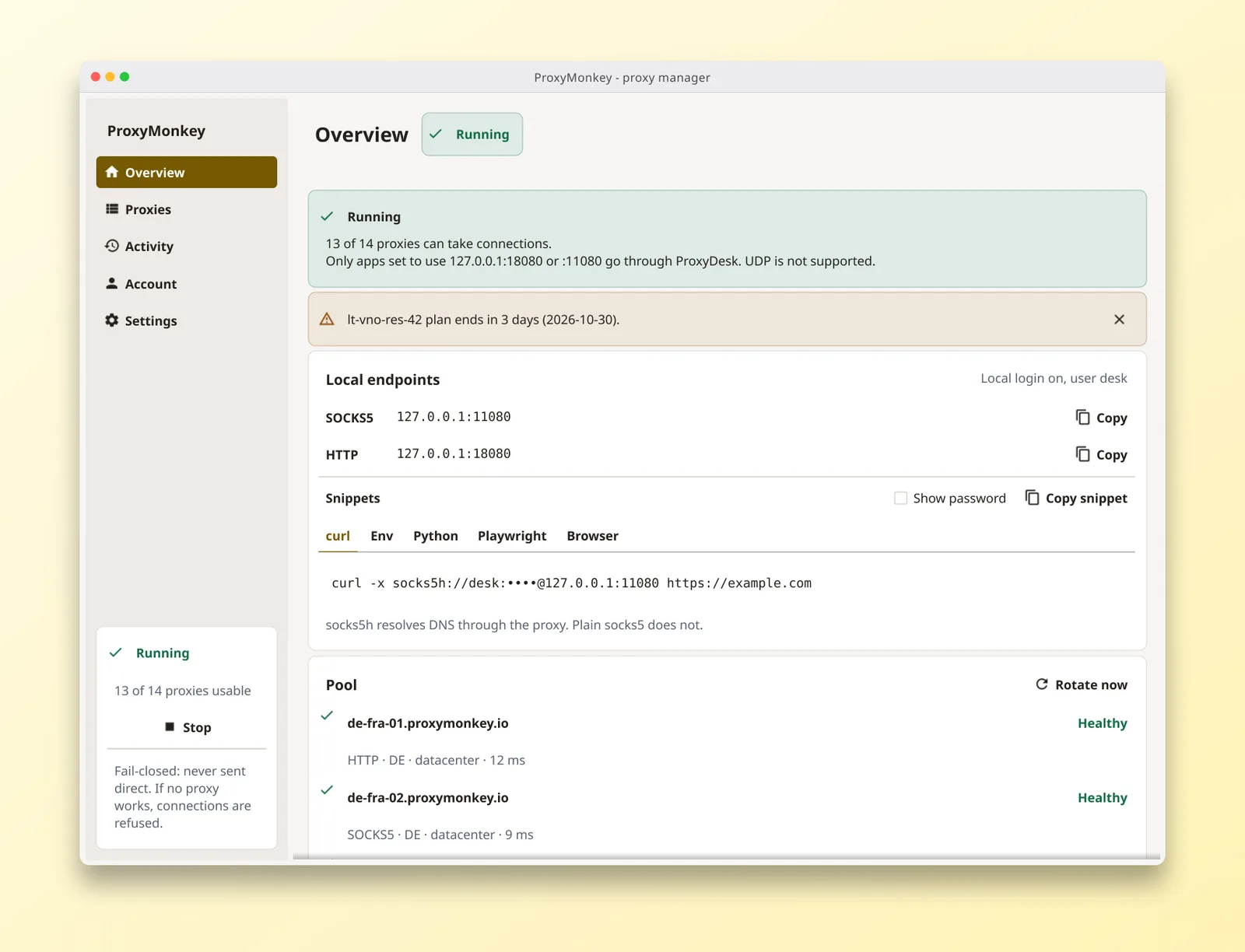
Two settings to know about. A local login makes apps send a username and password to use the endpoint; without one, any app on your machine can use it. And Accept connections from other machines on the network is off until you turn it on. If you do, set the local login too, otherwise anyone on your network can use your proxies, and ProxyDesk tells you so.
Step 4: point your tools at it
The Overview page has copy-paste snippets for curl, your shell, Python, Playwright and a browser, already filled in with your ports and local login. With the defaults and no local login, they read:
curl -x socks5h://127.0.0.1:11080 https://example.com

# or every tool started from this shell
export ALL_PROXY=socks5h://127.0.0.1:11080
export HTTP_PROXY=http://127.0.0.1:18080
export HTTPS_PROXY=http://127.0.0.1:18080
import requests # pip install requests[socks]
proxies = {"http": "socks5h://127.0.0.1:11080", "https": "socks5h://127.0.0.1:11080"}
print(requests.get("https://example.com", proxies=proxies).status_code)const browser = await chromium.launch({
proxy: { server: "http://127.0.0.1:18080" },
});Note the h in socks5h: it makes DNS resolve through the proxy. Plain socks5 looks names up on your own connection first. The SOCKS5 vs HTTP guide has the long version. The Playwright snippet uses the HTTP address: Chromium cannot send a password to a SOCKS5 proxy, so HTTP is the one that keeps working once you set a local login.
Step 5: pick how it rotates
By default every new connection gets the next healthy proxy. For targets that care about sessions, Settings has Stay on one proxy until it fails. Either way, Rotate now on the Overview moves you off the current proxy on demand. If you are not sure which you want, rotating vs sticky settles it with code.
What happens when a proxy dies
Each connection gets up to three tries. If the proxy it was handed fails, that proxy is benched and the next healthy one is tried, so one dead proxy costs a retry, not your request. The benched proxy is re-tested on its own, every five minutes by default, waiting longer each time it keeps failing, up to half an hour. When it passes, it is back in rotation. Both timings are in Settings, and nothing needs a restart.
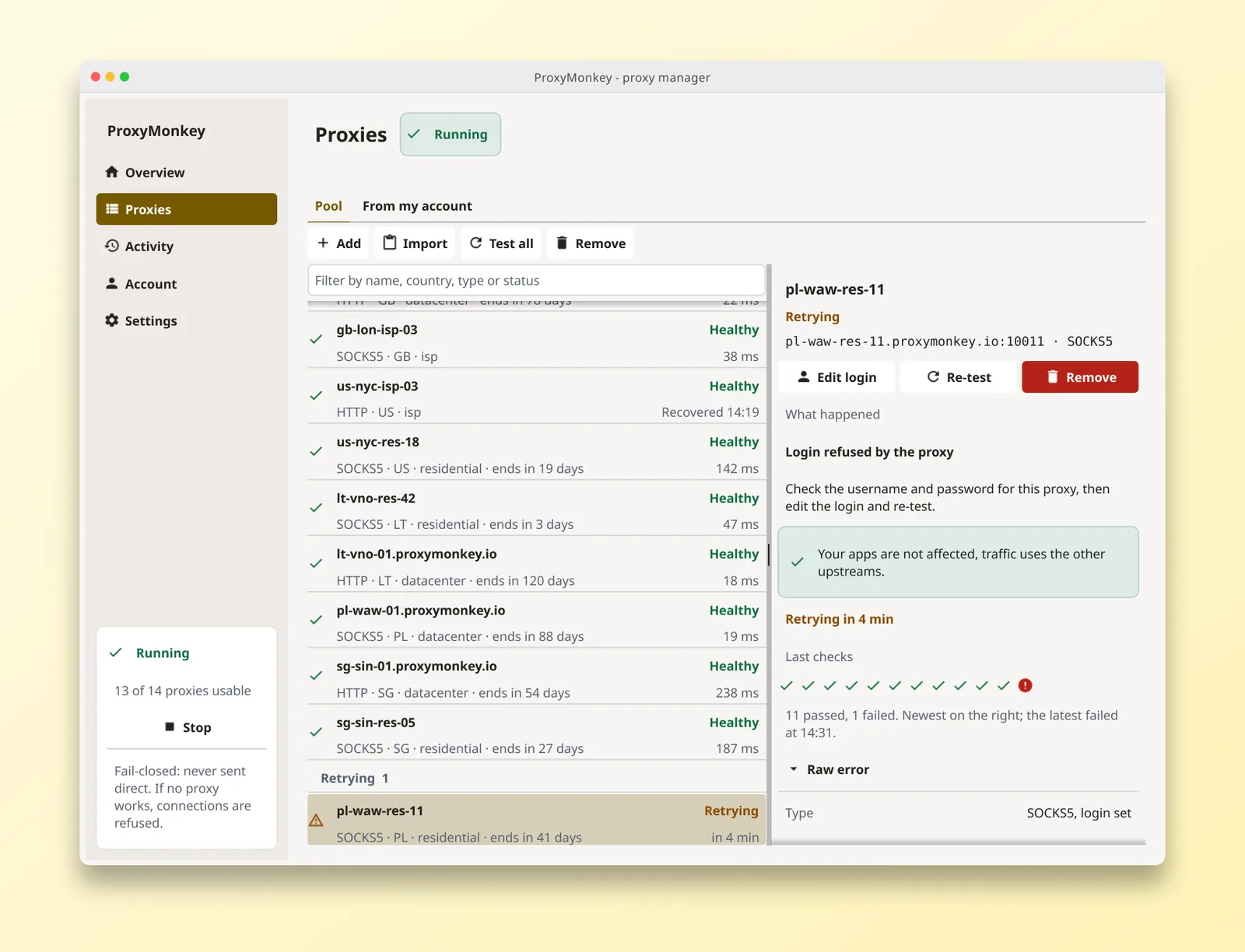
If every proxy is down, ProxyDesk refuses the connection instead of sending it out on your own IP. A SOCKS5 client gets the reply connection not allowed by ruleset; an HTTP client gets 502 Bad Gateway. Your scraper sees an error, which is annoying, and the target never sees your home address, which is the point. Handle it like any other failed request and retry later.
The health checks themselves cost a little traffic. ProxyDesk counts it separately from yours, so it never inflates your own numbers. Those numbers live on the Activity page, which is a whole post of its own: count your own requests.
What it does not do
- No UDP. It carries TCP over SOCKS5 and HTTP, nothing else.
- No per-site rules yet; every app you point at it shares the one pool. For per-site routing inside a browser, use the browser extension.
- No exit-IP check in the app yet. Until there is, ask the internet:
curl -x socks5h://127.0.0.1:11080 https://httpbin.org/ipprints the address the target sees.
That is the whole loop: one address in your code, the list behind it looked after, and a refusal instead of a leak when things go wrong. The rest of the screens are on the ProxyDesk page.
Top-ups start at $5.
One shared datacenter IP for 30 days is $1.25. A single gigabyte of residential is $2.40. The balance never expires.